Excel Trip Itinerary: Build a Smart Planner
October 20, 2026·MyPerfectStay

You've built a neat calendar grid for Lisbon, shared it with the group, and someone has overwritten a formula with a typed hotel price. The daily total now looks plausible, but it's wrong, and nobody can tell which version is current. That's the moment an Excel trip itinerary stops being a formatting task and becomes a data problem. Built as a controlled model instead, it can sort, calculate, flag clashes, and survive editing by several people.
Table of Contents
- Why a Smart Excel Itinerary Starts as a Data Model
- Setting Up Sheets and Columns That Actually Travel Well
- Formulas and Conditional Formatting for the Daily View
- Two-Pass QA Before You Treat the Itinerary as Bookable
- The Decision Gap Excel Cannot Solve on Its Own
- Accessibility and Energy Columns for Multigenerational Groups
- Exporting, Sharing, and Where the Workbook Fits Next
Why a Smart Excel Itinerary Starts as a Data Model
A decorative grid mixes three jobs in the same cells. You type raw bookings, calculate durations and totals, and present the day all at once. One helpful edit breaks a formula, and the error sits there because the sheet still looks tidy.
Build five sheets instead. Inputs holds trip constants such as travelers, home currency, and trip dates. Activities lists one row per event. Transport holds flights, trains, and transfers. Budget aggregates costs. Daily View is read only and pulls everything into chronological order.
Why Separation Protects You
Only Inputs, Activities, and Transport get typed values. Budget and Daily View contain formulas that reference those cells, so a changed arrival time flows through instead of requiring manual fixes in three places. Protect the formula sheets once they work.
Give every activity a unique ID such as PAR-01 or MRK-04. IDs let formulas look up the right row even after sorting, and they make duplicate bookings obvious. Venue names won't do that job, because two people will spell the same Paris museum differently.
Practical rule: If a cell is meant for reading on the trip, nobody should be typing into it during planning.
For Europe and MENA routes, record local time zone and use airport or rail station codes. CDG, BCN, DXB, and RAK are unambiguous in a way that "main station" isn't when a Lisbon to Marrakech leg crosses zones.
This caution is earned. A review of 50 operational spreadsheets found formula-error rates around 0.9% to 1.8%, while broader literature reports approximately 94% of spreadsheets containing at least one error and a 5.2% average cell-error rate, as summarized in spreadsheet quality research published in JISE. Structure doesn't remove errors, but it confines them to places you can audit.
Setting Up Sheets and Columns That Actually Travel Well
Start with Activities, because most mistakes enter there. Store dates as real Excel dates and times as numeric time values, never as typed text like "Tuesday morning." Text won't sort reliably, won't calculate durations, and breaks the moment a Paris to Rome rail day crosses midnight.
Microsoft documents DATE, TIME, DATEVALUE, TIMEVALUE, DAYS, and DATEDIF as the core functions for converting text into serial dates and times and calculating intervals, as listed in Microsoft's date and time functions reference. Use DATE and TIME to build clean values from separate day, month, and hour inputs, and DATEVALUE or TIMEVALUE only to clean up pasted booking text.
Essential Columns for the Activities Sheet
| Column | Data Type | Why It Matters |
|---|---|---|
| Activity ID | Text code | Stable lookup key after sorting |
| Date | Excel date | Enables sorting and interval math |
| Start and End | Numeric time | Powers duration and overlap checks |
| Local Time Zone | Text | Prevents cross-border confusion |
| Venue or Station Code | Text | Removes ambiguous place names |
| Booking Reference | Text | Links plan to confirmation evidence |
| Cancellation Deadline | Excel date | Flags decisions before they cost money |
| Responsible Traveler | Text | Shows who owns the booking |
Add travel duration and buffer time beside those fields. A Barcelona gallery visit that ends across town from dinner isn't a conflict on paper until transfer time is a column.
Set validation rules early: dates must fall inside the trip range, start time before end time, location can't be blank, and costs can't be negative. On Transport, keep hotel nights, transfers, and intercity legs separate so a Rome arrival doesn't share formula logic with a museum ticket. If you're coordinating timings across several people, it helps to align this structure with how you build a shared group schedule before bookings multiply.
Formulas and Conditional Formatting for the Daily View
The Daily View should assemble itself. Use a consistent sequence: normalize inputs, calculate durations, insert buffers, detect overlaps, assign confirmation status, then publish. If you format first and calculate later, you'll keep repainting cells that formulas later overwrite.
This is what a working planner looks like before it's dressed up for sharing.
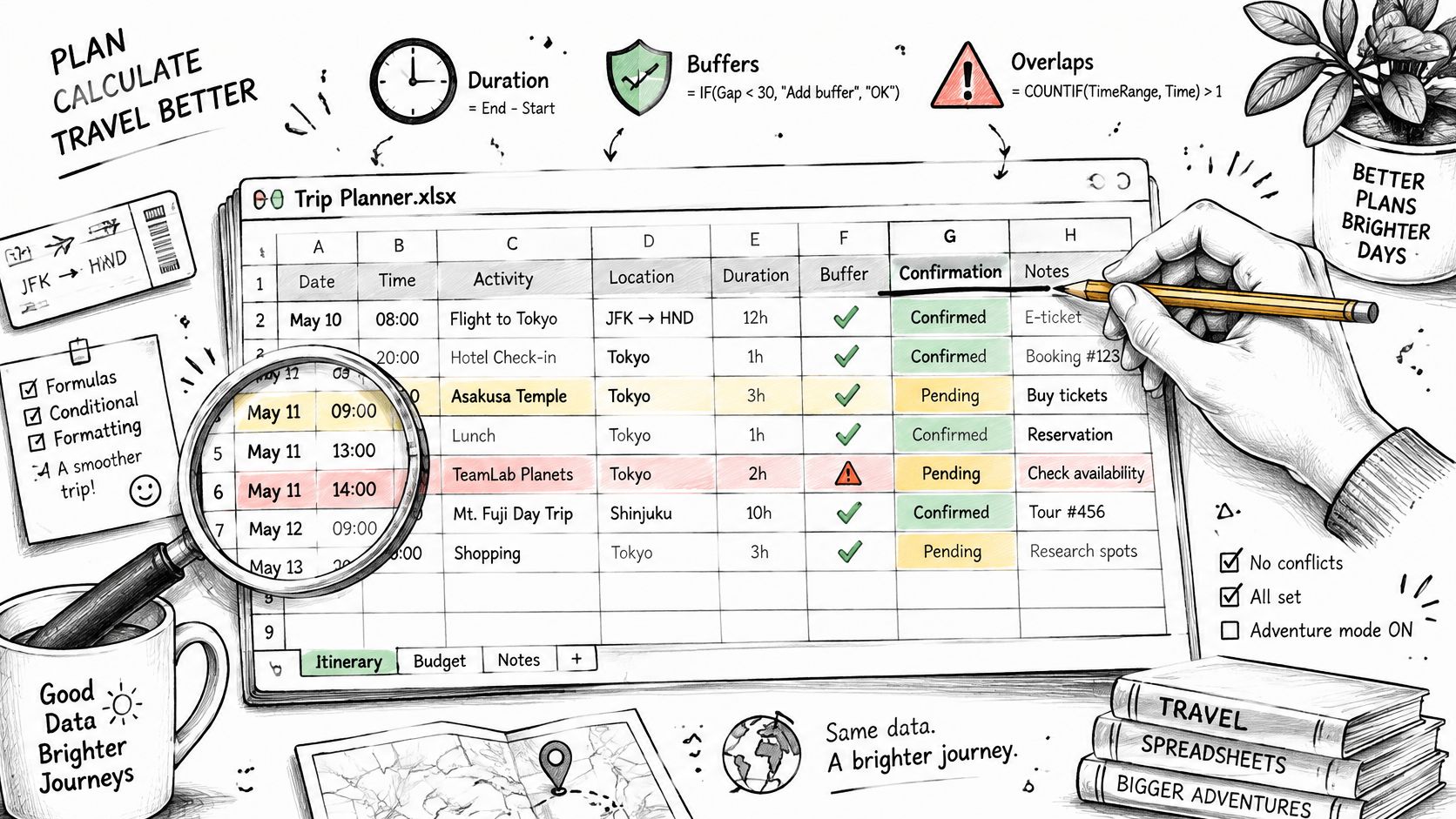
Duration is end minus start when times are numeric, plus travel and buffer columns for the true block of occupied time. Overlap checks compare one row's start with the previous row's buffered end. Pull matched rows into Daily View with XLOOKUP or INDEX and MATCH keyed on Activity ID, sorted by date and start time.
Making Problems Visible at a Glance
Layer conditional formatting on the output, not the inputs:
- Red fill: overlapping blocks or impossible transfers
- Amber fill: missing booking reference or unconfirmed status
- Green fill: booked, paid, and evidence linked
- Data bars: running daily spend against the Budget sheet
A Dubai day with a morning old town walk and an evening desert departure reads clearly when the transfer block sits visibly between them. Barcelona works the same way. The formatting isn't decoration, it's an alarm system. Even Global Vacation Rentals' Disney World advice underlines the broader point that allocating enough days matters before you start packing activities in, and your Daily View should expose days that are overloaded at a glance.
Watch a worked build before adapting the formulas to your own dates.
Two-Pass QA Before You Treat the Itinerary as Bookable
An unaudited workbook is a draft, however confident it looks. Run two passes, in order, and don't let the person who built the formulas do both alone. Solo visual inspection misses errors that a second checker, working to a list, catches routinely.
Use this checklist to keep the two passes distinct.
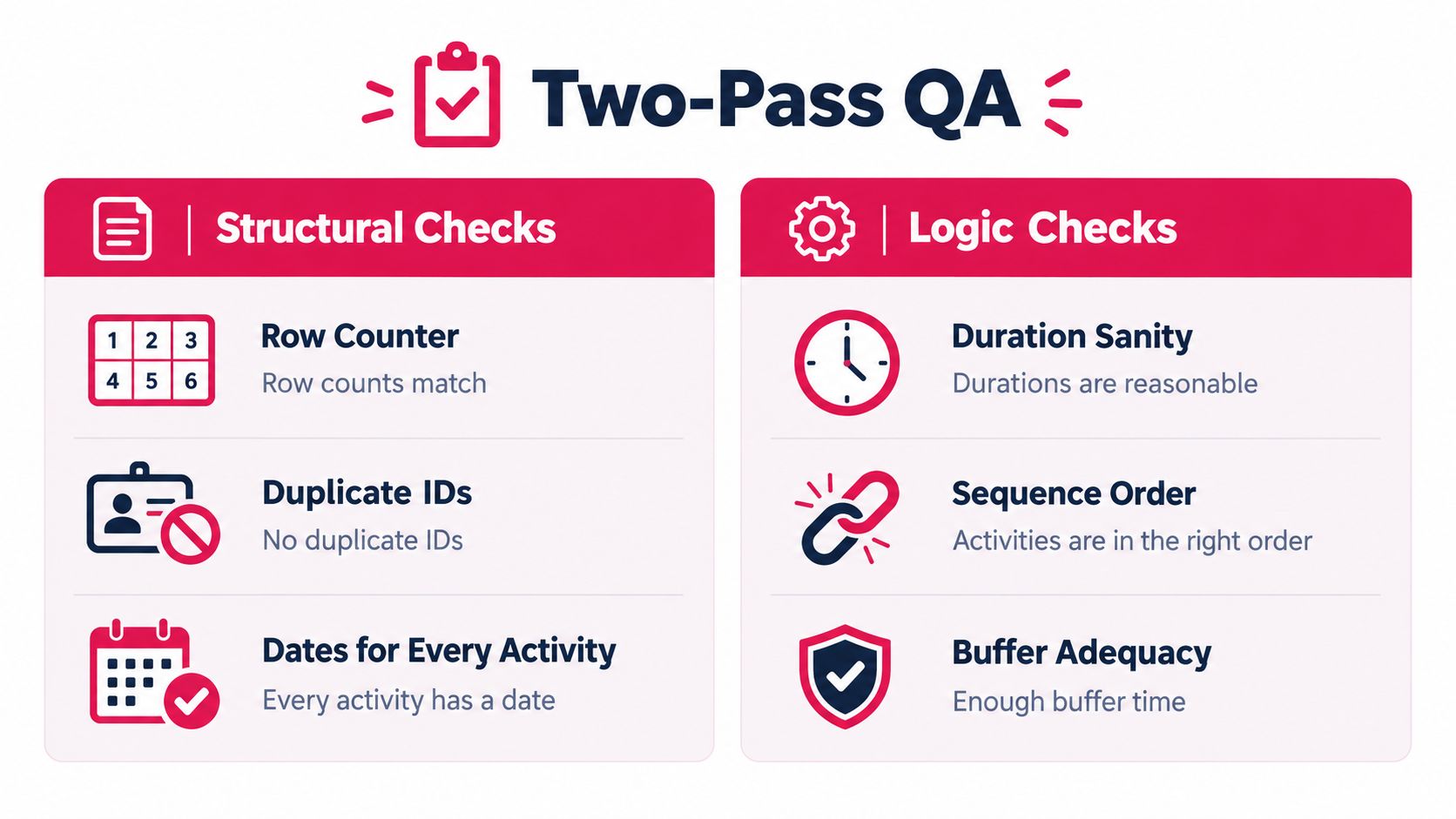
Pass One Structural Checks
Compare input row counts with itinerary row counts. Flag duplicate booking IDs. Confirm every activity has a date, start, end, venue, and status. Then reconcile each daily total against activities, transport, accommodation, taxes, and contingency added separately. If the two routes to the same total disagree, one of them is wrong, and that's useful news.
Pass Two Scenario Audits
Change something and watch what moves. Shift an arrival time, change group size or currency, and cancel one activity. Dependent totals, availability flags, and daily sequencing should update without manual edits. Test boundary cases too: midnight crossings, daylight saving changes, overnight trains from Vienna to Venice, blank optional activities, and duplicated bookings.
Protect formula cells, keep a change log with timestamp, editor, and reason, and split the audit. One person validates logistics, another validates commercial data, then both sign off after export. A Lisbon hotel total with a silent currency error is exactly the kind of fault this split catches, because the logistics checker may never look at exchange logic.
Release it only with zero unresolved overlap flags, every booking linked to confirmation evidence, and a reconciled total. Otherwise label the file Draft, not Confirmed.
The Decision Gap Excel Cannot Solve on Its Own
A flawless workbook documents agreement. It doesn't create it. That's the gap most template advice skips, and it's why groups can have a beautiful spreadsheet and still argue in three chat threads about whether Dubrovnik deserves two days or three.
Demand makes the problem bigger, not smaller. 77% of Europeans surveyed across ten major markets intended to travel between June and November 2025, while 55% preferred lesser-known destinations, up from 48% in spring 2025, according to European travel intentions data for summer and autumn 2025. More destination choice means more competing preferences landing on one organizer.
Three Ways Groups Actually Decide
Organizer chooses is fast and works for small, trusting groups, but it hides dissent until someone disengages. Majority voting is transparent, yet it can steamroll a minority with a hard budget limit or a must-see priority in Prague. Weighted matching collects budget, interests, and energy privately, then scores options against the whole group, so trade-offs are visible before anything is booked.
None of these live naturally in a spreadsheet. Excel requires manual sharing and editing, participation stays invisible, and version control frays once copies circulate. You can bolt on voting columns, but you'll spend your time chasing blank cells.
Set the decision rules before building rows: who proposes options, what's the deadline, does consensus mean unanimity or a quorum, and how are ties broken. Then move the agreed shortlist into Activities. Exploring what a dedicated decision-making tool handles upstream clarifies that boundary. Excel's job starts once the group has fairly chosen.
Accessibility and Energy Columns for Multigenerational Groups
Most templates treat travelers as interchangeable. A multigenerational Rome or Lisbon trip fails on exactly that assumption, because a grandparent, a toddler in a stroller, and a teenager don't spend energy at the same rate.
The scale is hard to ignore. A 2025 travel trend report cited by Topologica says 30% of multigenerational travelers consider accessibility a top destination priority, while 47% of travelers were reported to be choosing multigenerational trips, up 17% from 2024, as covered in Topologica's multigenerational travel analysis.
These five columns cover most of what standard templates miss.
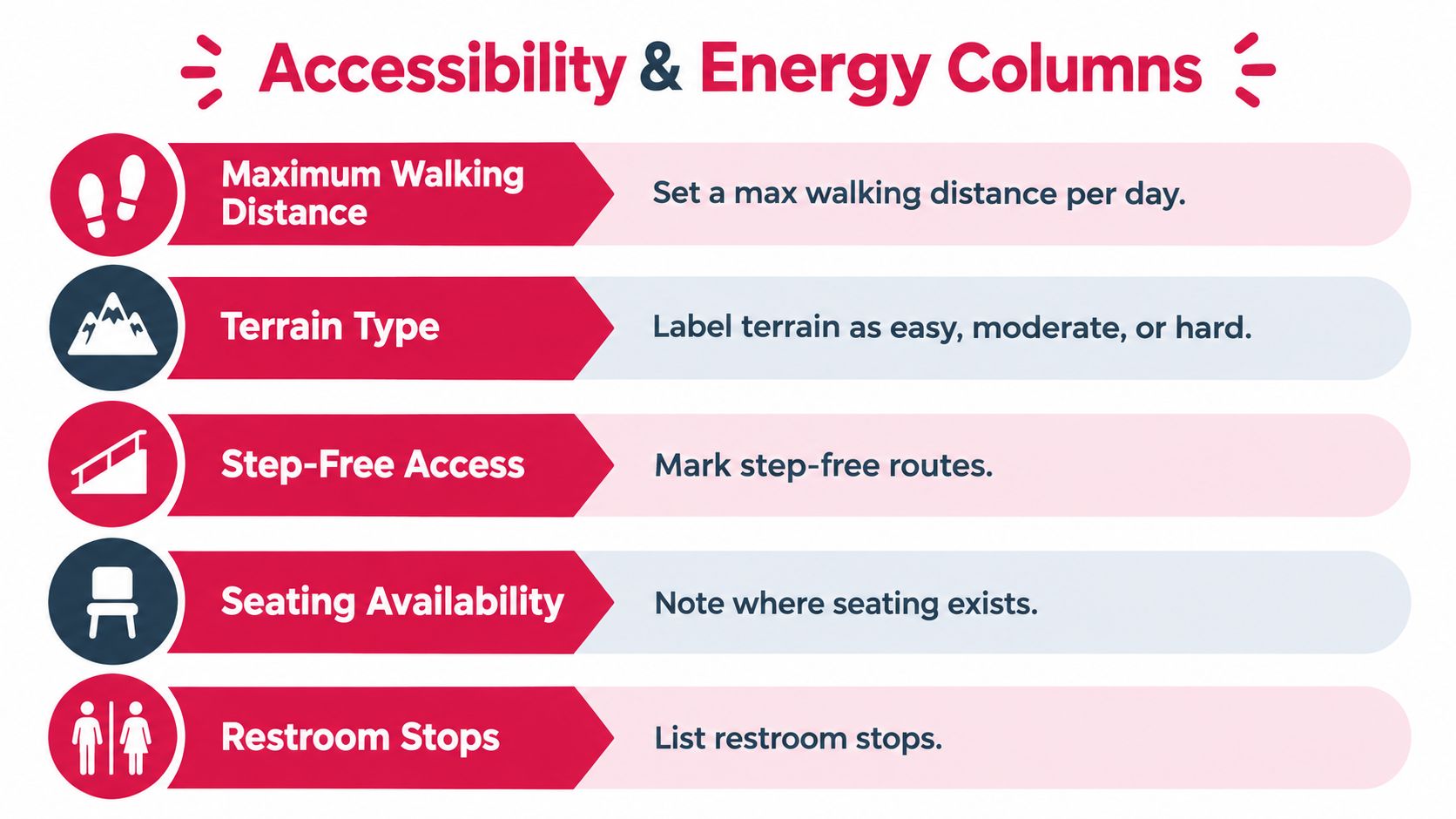
Add maximum walking distance, terrain, step-free access, seating availability, restroom access, heat exposure, and scheduled rest windows to Activities. In Marrakech, heat and uneven medina surfaces matter as much as opening hours. In Lisbon, hills and tram access decide whether a route is realistic.
Include a low-effort fallback near each major activity, such as a shaded café, a seated viewpoint, or a short taxi return to the hotel. Parallel options let part of the group continue while others rest, without framing anyone as the constraint. Keep medical notes in a private organizer field, not in the shared Daily View.
Plan no more than one major activity per day and leave open time around it. Packed days look efficient in a grid and feel punishing by day three. An accessible itinerary models the people on the trip, not just the attractions in the city.
Exporting, Sharing, and Where the Workbook Fits Next
Publishing is a control step, not an afterthought. Lock formula cells, hide working sheets if they'll confuse readers, and present Daily View as the single read-only tab the group opens in Amsterdam, Cairo, or Santorini.
These three steps keep the shared copy trustworthy.
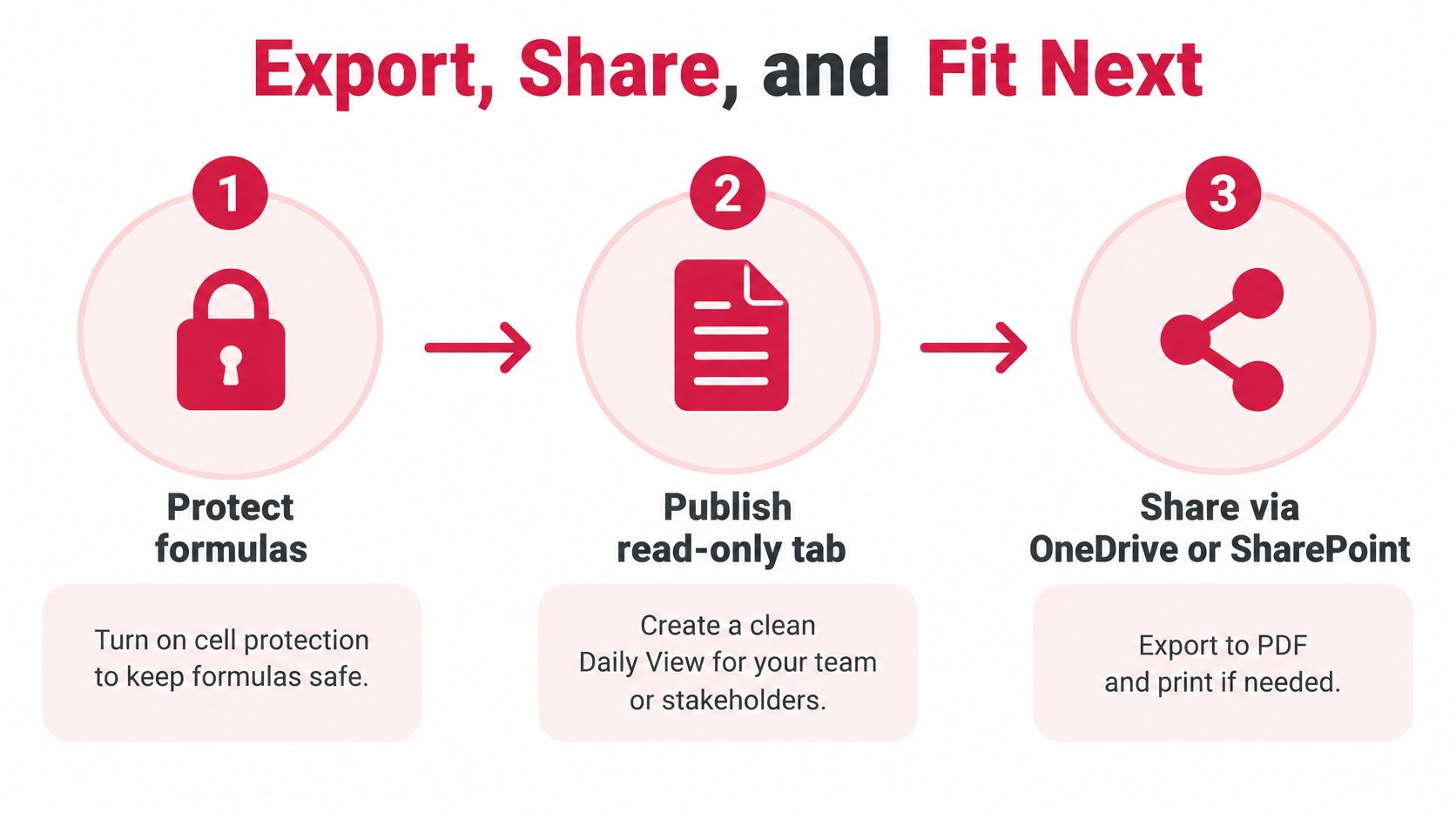
Share through OneDrive or SharePoint with edit rights limited to named organizers and view rights for everyone else. Export a PDF snapshot for offline use and printing, because station connectivity in transit is unreliable. A printed Daily View with a QR code linking back to the live file works well for older travelers who won't open a workbook on a phone.
For day-to-day use, screenshot slices of one day at a time suit group chats better than a whole workbook. Keep booking confirmations linked from the reference column rather than pasted into cells, and export a CSV of Activities if you need to move data into another system. If the group also coordinates outside the file, align it with practical ways to share a calendar so dates don't drift between tools.
Place the workbook correctly in your stack. Preference collection, fair scoring, deadlines, and nudges belong upstream in a purpose-built decision layer. Once the group locks its choices, the Excel trip itinerary earns its keep on logistics: sequencing, buffers, budgets, confirmations, and QA.
Decide first, document second, audit third. Reversing that order is how groups end up with a precise plan nobody actually agreed to.
Build the decision before you build the spreadsheet. MyPerfectStay lets each traveler share budget, interests, and energy level privately, then surfaces matched activities the group can vote on and book together, so your workbook starts with a plan everyone already supports.